Recreate camera movement from a previs clip with Seedance 2.5
Use a simple-model video for camera and timing, then supply your own keyframes to render a finished 30-second scene through VizoAPI.
A simple-model clip can carry a camera plan into a finished Seedance 2.5 scene. The reference supplies movement and timing. Separate images supply the character and environments. This lets you recreate the structure of a short video using your own artwork and assets.
Build a journey from a bedroom into a fantasy flight, underwater, through a portal, and back home. Block it with basic geometry, colored shapes, and a simple figure. Then use keyframes to replace those shapes with detailed animation while keeping the movement and sequence.
Prepare your own character and setting references, using assets you have permission to use. Submit them with the previs clip through VizoAPI’s POST /v1/generations endpoint. Rates for each resolution, with and without an input video, are on the Seedance API page.
1. Separate the camera plan from the finished appearance
Start with a video that already contains the movement you want. Use a previs export from your 3D tool or another clip you own. Check that the subject’s path reads clearly and each camera move begins and ends where you intend. Settle those decisions before working on materials.
The clips and frames here are from ByteDance’s own example.
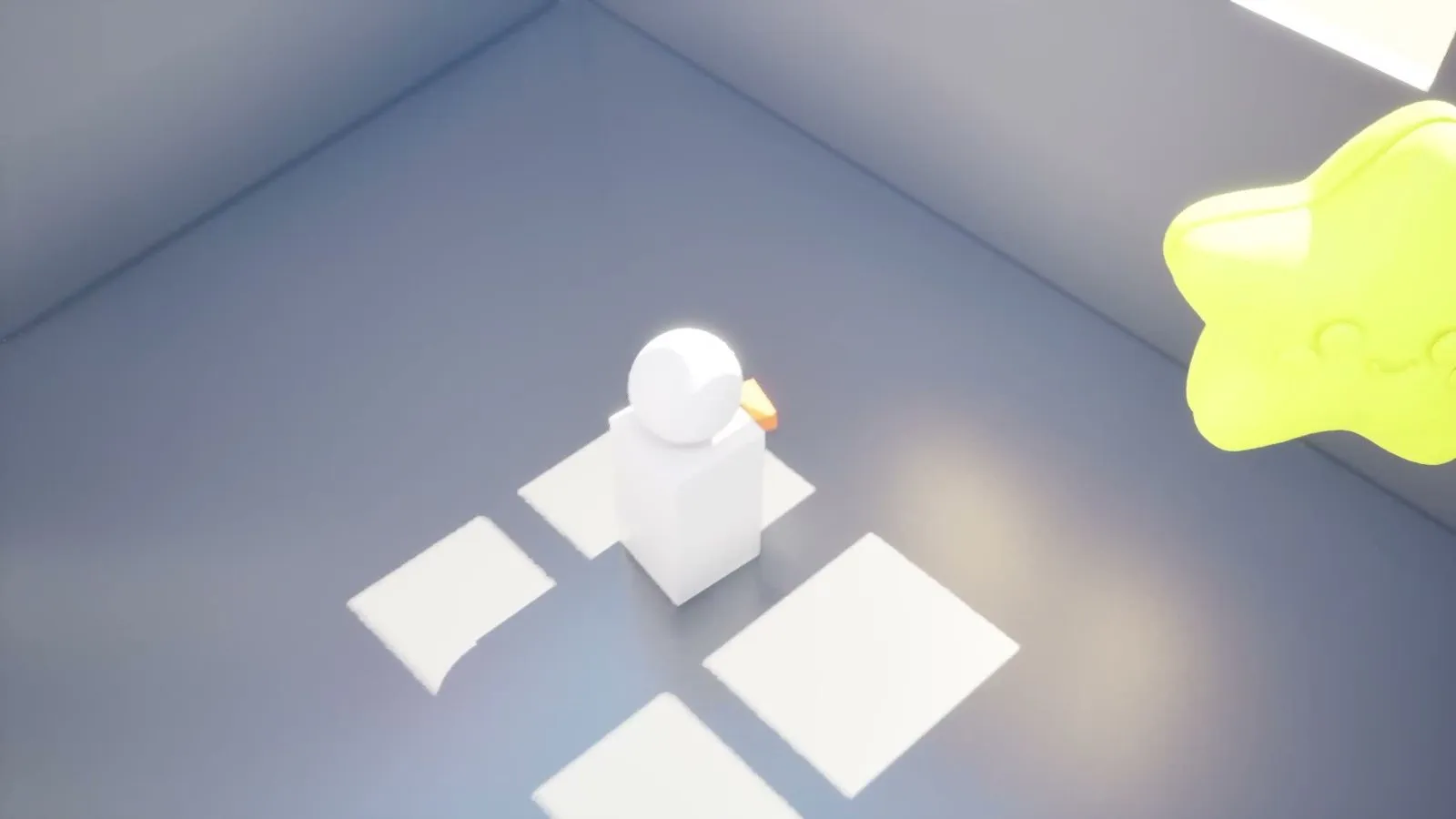
Use simple geometric bodies for coarse blocking. If you include limbs or wings, animate their complete action sequence. Unfinished movement can produce a stiff render: a moving body with stationary legs gives conflicting evidence about how the character should travel.
Use the clip to settle the motion before adding visual detail. For this example, the progression is room, flight, descent, underwater passage, portal, space, and return. Each change needs a corresponding part of the reference video.
2. Prepare the appearance references in order
Prepare nine images alongside the video. Use them for successive stages of the scene and keep their order fixed: the prompt refers to each image by position.
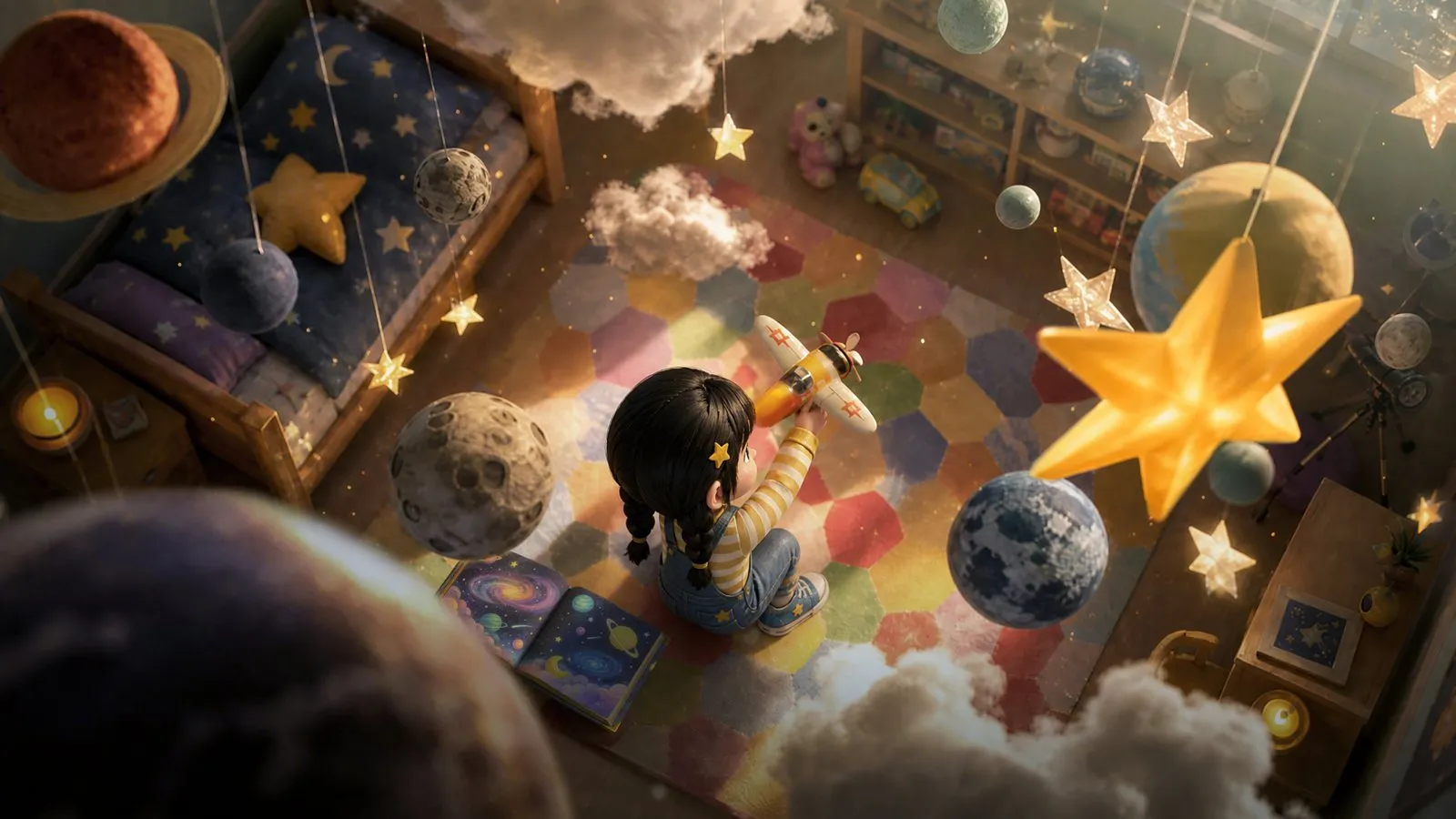
For your own production, make a small asset list before submitting:
| Image | Scene responsibility |
|---|---|
| 1 | Opening bedroom and girl |
| 2 | Airplane entering the fantasy sky |
| 3 | Side view during flight |
| 4 | Rear view before descending toward the sea |
| 5 | Underwater arrival |
| 6 | Underwater passage and approaching portal |
| 7 | Arrival in the fantasy universe |
| 8 | Space scene and transition toward the return |
| 9 | Closing picture-book composition |
These are creative responsibilities in the prompt. Every image uses the same API role, reference_image. There is no special bedroom, character, or camera role.
The timeline below reuses image 8, the space image, during the return-to-sleep interval. Inspect that interval closely. For your own sequence, align the picture and action description before submitting. The image should support the intended scene at that point.
3. Compare the reference path with the keyframes
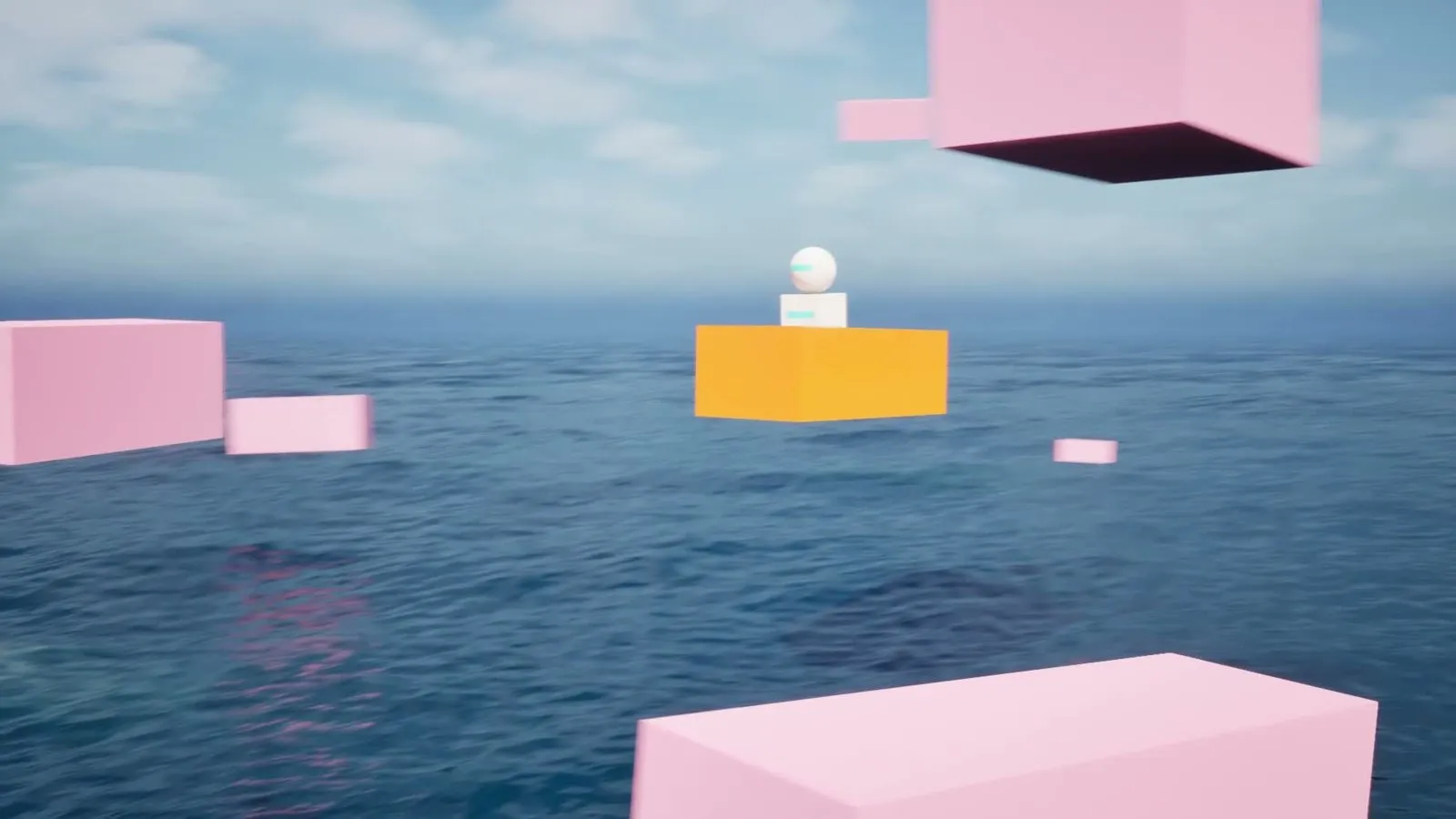
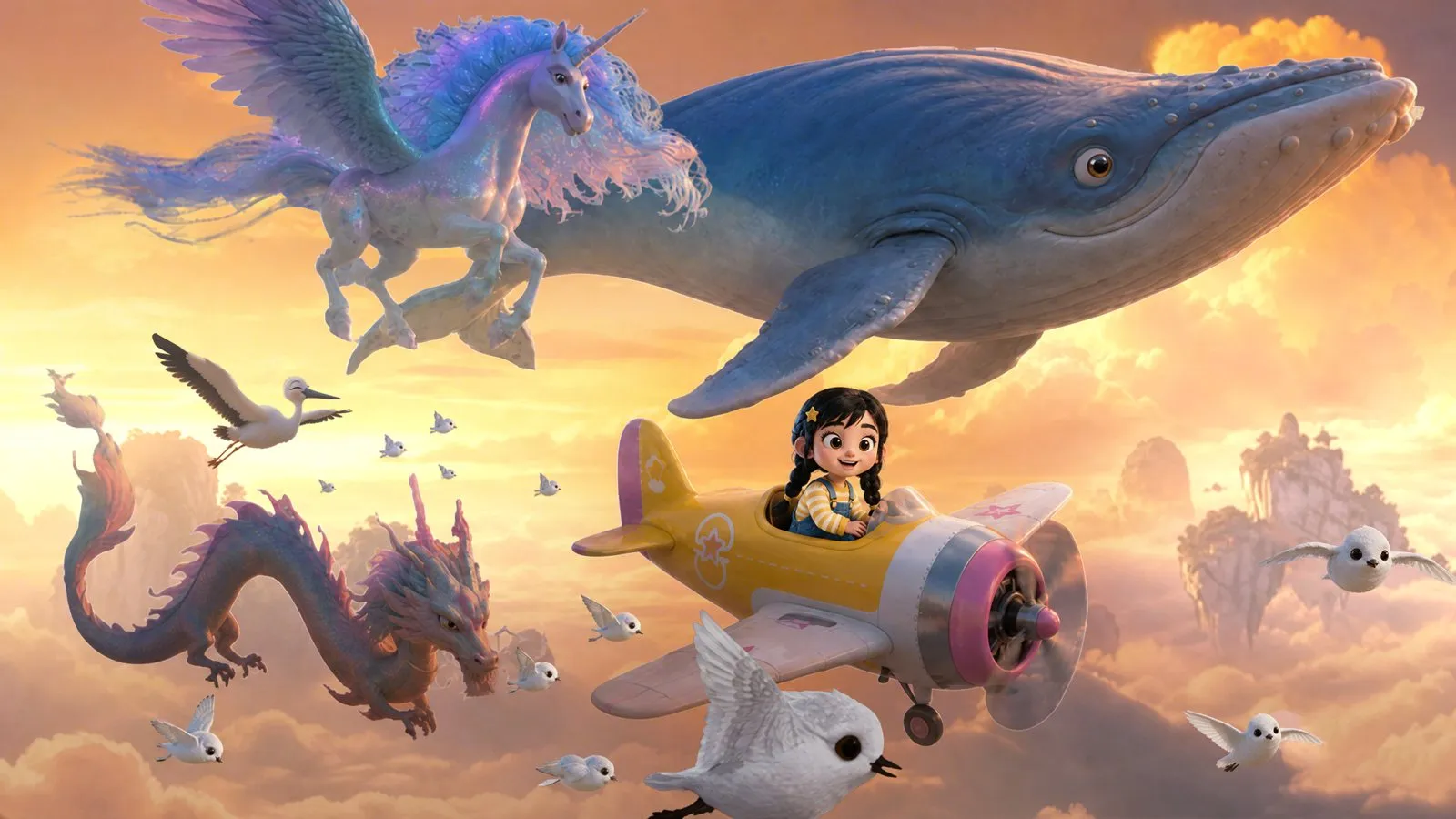
Use the video for camera movement, shot rhythm, framing changes, and subject trajectory. Use the still images for appearance. Keep those responsibilities separate when you replace the artwork with your own characters or products.
Check both together. A still showing a front-facing subject may be a poor match for a long rear-following shot. A reference image can supply appearance without supplying the entire camera plan, but the planned view must still make visual sense.
Avoid asking the prompt to reverse the subject’s direction while also preserving the reference motion. Revise the blocking clip when the desired movement changes.
4. Submit one video and nine images
Send this JSON body to POST /v1/generations. Replace each placeholder with a reachable URL for your own asset. Replace the short text with the full brief in step 5.
{
  "model": "seedance-2-5",
  "input": {
    "content": [
      {"type": "text", "text": "Use the blocking video for camera movement, shot rhythm and subject motion. Use images 1 through 9 for the corresponding finished scenes. Follow the full 30-second timeline."},
      {"type": "video_url", "video_url": {"url": "https://example.com/blocking.mp4"}, "role": "reference_video"},
      {"type": "image_url", "image_url": {"url": "https://example.com/room.jpg"}, "role": "reference_image"},
      {"type": "image_url", "image_url": {"url": "https://example.com/sky.jpg"}, "role": "reference_image"},
      {"type": "image_url", "image_url": {"url": "https://example.com/flight.jpg"}, "role": "reference_image"},
      {"type": "image_url", "image_url": {"url": "https://example.com/descent.jpg"}, "role": "reference_image"},
      {"type": "image_url", "image_url": {"url": "https://example.com/underwater.jpg"}, "role": "reference_image"},
      {"type": "image_url", "image_url": {"url": "https://example.com/portal.jpg"}, "role": "reference_image"},
      {"type": "image_url", "image_url": {"url": "https://example.com/universe.jpg"}, "role": "reference_image"},
      {"type": "image_url", "image_url": {"url": "https://example.com/space.jpg"}, "role": "reference_image"},
      {"type": "image_url", "image_url": {"url": "https://example.com/book.jpg"}, "role": "reference_image"}
    ],
    "omni_reference_task_type": "reference",
    "duration": 30,
    "ratio": "16:9",
    "resolution": "720p",
    "generate_audio": true
  }
}
reference makes a new video guided by the supplied media. Seedance 2.5 requires omni_reference_task_type whenever a video is attached. The nested URL belongs in video_url.url; reference_video belongs in role.
This request uses one video and nine images. Seedance 2.5 allows up to 10 videos, 30 images, and 10 audio items. Its integer duration range is 4 to 30 seconds; -1 is also accepted for automatic duration. Set 30 seconds to fit the timeline below. Use 720p for a 1280 × 720 frame, matching the clip shown here; the other accepted resolutions are 480p and 1080p.
Keep all nine stills as reference images. Even though the opening picture describes the first moment, assigning it first_frame would conflict with the attached reference video. Dedicated first/last-frame roles cannot be mixed with reference media.
5. Give movement and appearance separate instructions
Write the motion constraints first, then map images 1 through 9 to the timeline. Keep the image numbers consistent with their order in the request. Replace the character design and settings with your own assets.
Use the blocking video as the sole reference for camera movement, shot
rhythm, changes in framing, subject trajectories and staging. Preserve
its shot order, camera changes, movement and pacing. Do not add shots
or change the logic of the subject's motion.

Use the corresponding keyframe images for the finished appearance.
Create a 30-second cinematic 3D animated short with a warm, dreamlike,
fairy-tale atmosphere. Keep the character's appearance consistent with
the keyframes. Let facial expression change with the scene.

0-3s, image 1: From a wide overhead view, slowly push toward the girl
playing with an airplane on the room's rug. She stands, turns left,
and throws the airplane with her right hand.

3-5s, image 2: The airplane travels left to right through the hanging
stars. The girl rides it into an imaginary sky.

5-8s, image 3: Continue tracking sideways and orbit around the girl.

8-10s, image 4: Orbit behind her airplane as it begins descending
slowly toward the sea.

10-19s, images 5 and 6: The girl continues underwater. A ray swims
into view.

19-23s, image 7: She emerges through a space-time opening into a
fantasy universe.

23-24s, image 8: The girl and foreground planet begin rotating
forward and gradually disappear.

24-28s, image 8: Continue pushing forward from above. The girl is
asleep on the rug.

28-30s, image 9: Keep pushing toward the picture book. Her father
then enters the frame.

Use the images for each stage's visible content. Use the blocking
video only for camera movement and character animation. Output a
30-second landscape video in 16:9.
The first image guides an opening shot semantically, through the text. It remains a reference_image in the API. The timeline is also text guidance: this request has no structured per-shot duration field.
6. Review the transfer at matching timestamps
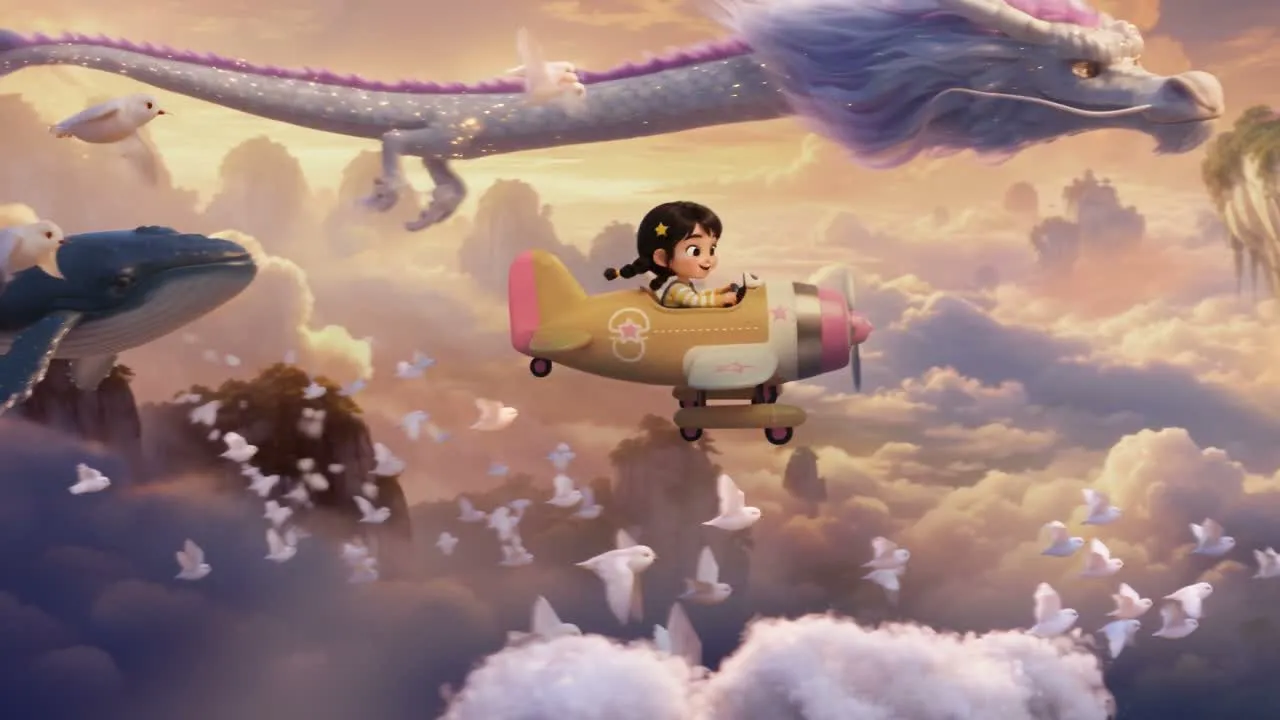
Start with the path and camera. Then check character appearance. A detailed frame can look convincing while the camera has moved to the wrong side of the action.
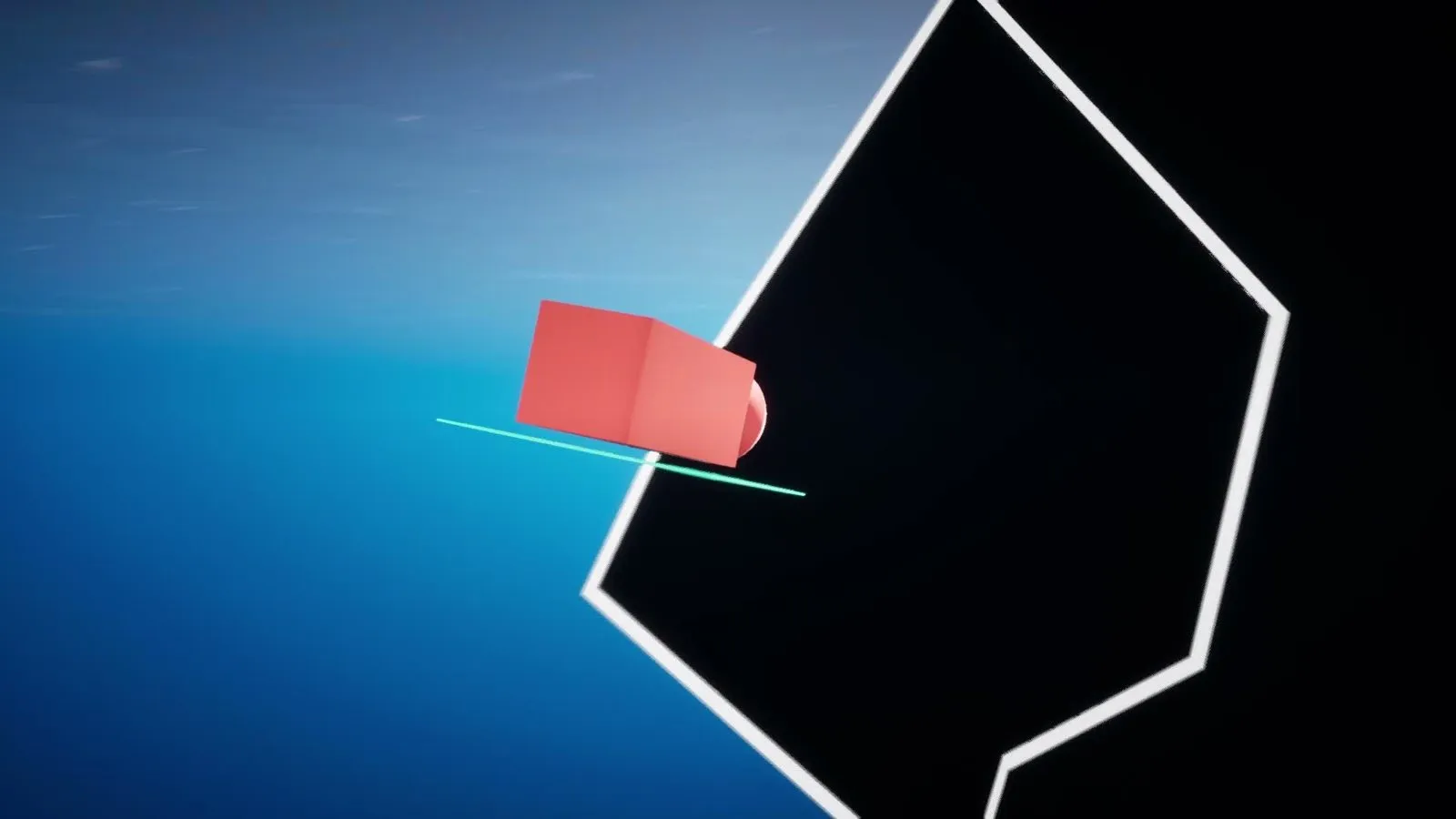
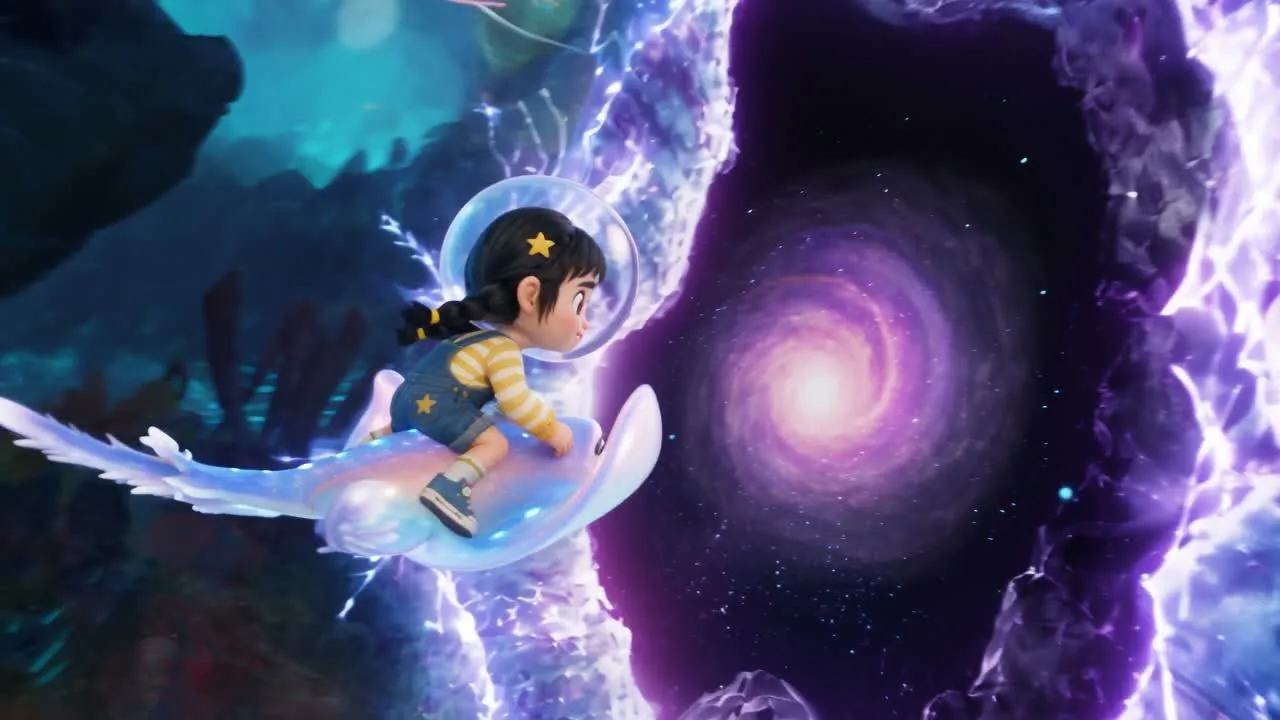
The result should preserve the intended progression without retaining the primitive geometry. If blocks remain visible, check whether the text clearly assigns appearance to the still images. If the camera ignores the reference, remove any competing camera direction from the scene descriptions.
For a missed transition, compare the relevant interval in both clips. Correct a motion problem in the blocking video. Correct an appearance problem in the matching still. Change the text when the two inputs disagree about what should happen.
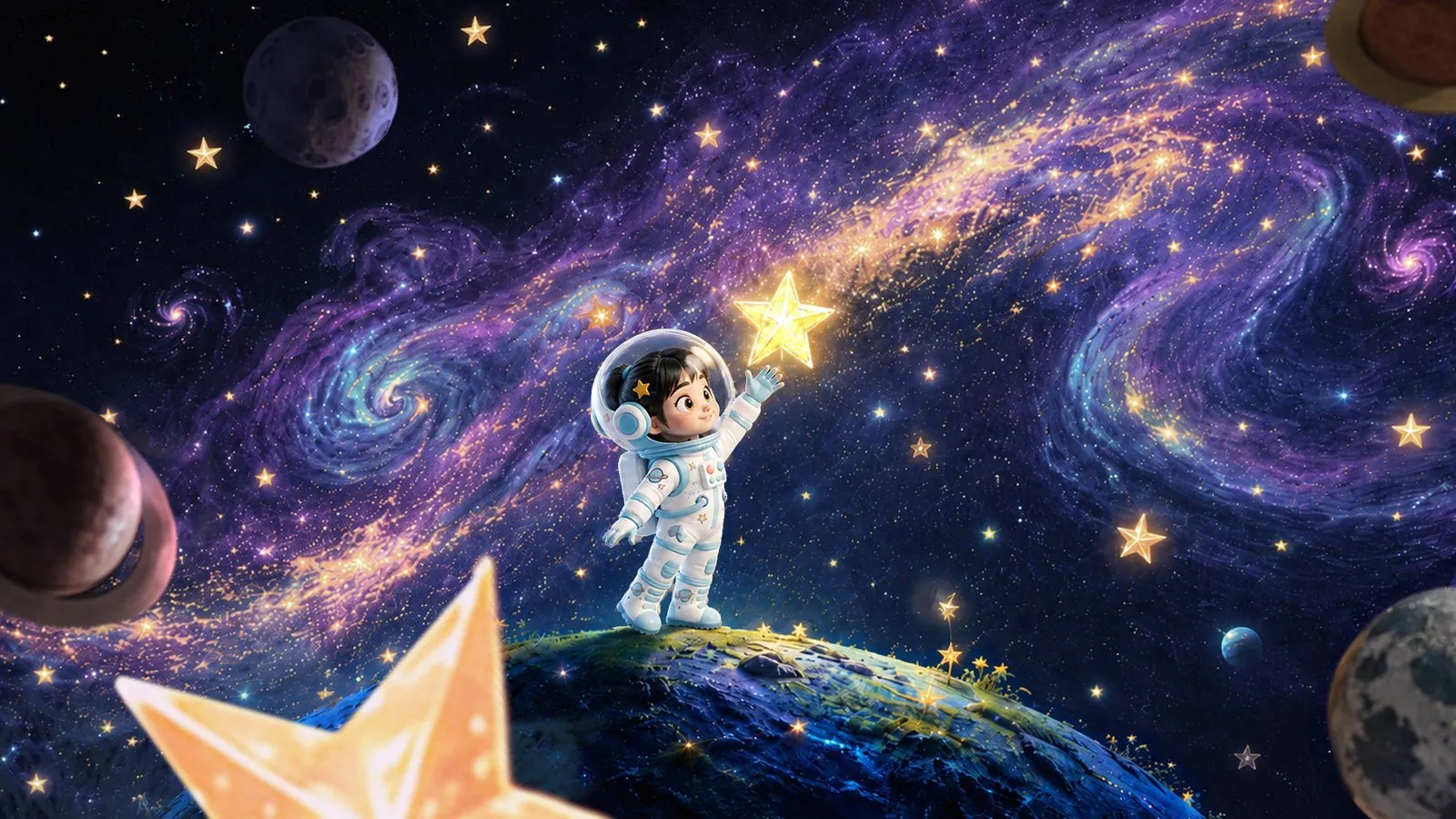
The player contains a 27-second excerpt of the approximately 30-second clip. The final book shot, which contains Chinese lettering, is omitted. The soundtrack has no detected dialogue. Review your own ending against the 28-30 s interval, then save the request, ordered assets, and accepted output together.